
Building
Skins
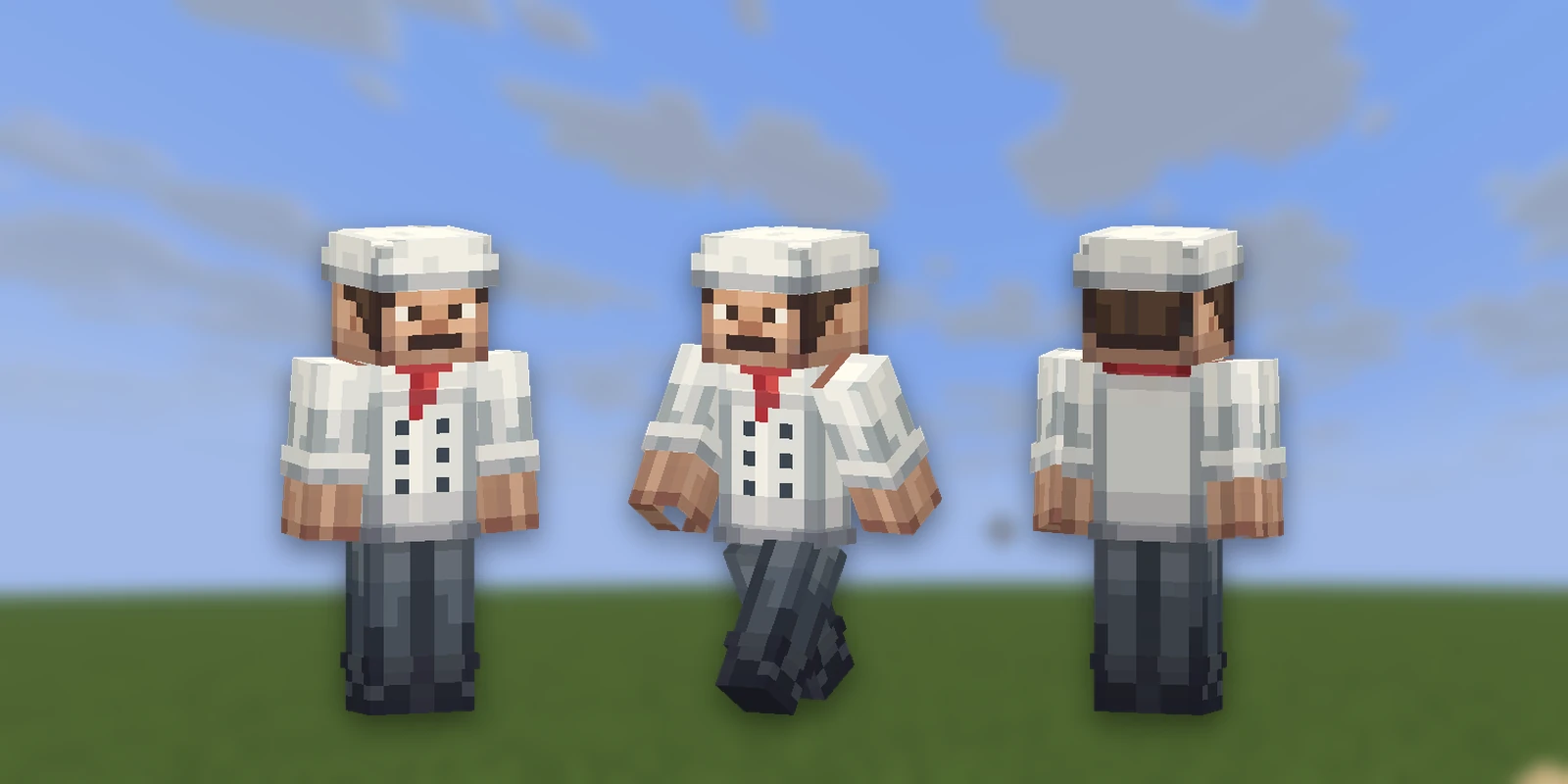
A skin is what a player looks like. Skins live on your account rather than in a pack, under Skins in the sidebar, because a skin is yours wherever you play.
Making one#
Press New Skin and choose how to start:
- Generate: describe it ("a knight in dented steel armour with a red cloak") and Studio paints it, starting from the default skin so the face and shape are right. It costs AI Credits (from 45) and takes a few minutes; the skin shows as generating until it lands.
- Import: drop a skin PNG you already have, or type a Minecraft username to copy that player's skin.
- Start from: open the editor on the default skin or an empty body and paint it yourself.
Every skin has an arm width, Classic or Slim, which you can change later.
The editor#
You paint the skin flat, beside a 3D player you can turn to check it. The outer layer sits just off the body, which is how hair, hoods, sleeves and jackets stand proud of it; switch to it to paint there. The tools are the pixel editor's: pencil, fill, a colour picker, rectangles and ellipses, and Fill part to colour a whole body part at once.
Using it#
- Sync: puts the skin on you on the server your pack is linked to. It changes how you look to everybody there.
- Download PNG: the 64×64 file Minecraft takes, to set as your skin in the launcher.
- Publish to the Gallery: anybody can then copy it.
Syncing goes through a service that registers the skin with Minecraft, which is what makes other players see it. It is rate limited, so on a busy day a sync can be refused for a minute; try again shortly.